We put together this quick guide to get you up and running with GatherUp in a fast but educational process. You are just steps away from your start to gather customer feedback and encourage online reviews to manage your customer experience.
Download the PDF version to print off or walk through the steps below.
We’re excited you’ve chosen GatherUp as your platform to listen to, understand and engage customers. You’re ready to turn the customer voice into customer loyalty. This quick guide will help you get your account set-up and your business started with gathering customer feedback and reviews. While GatherUp is a very robust platform, this “Quick Start Guide” was created to have you up and running in about an hour.
This quick guide will guide you through the following milestones:
1
Adding a new business
Creating the business
Authorizing your Google Account
Adding your logo and brand colors
2
Selecting your review request flow
Survey & Reviews Flow
Ratings & Reviews Flow
Public Reviews Flow
3
Adding customers to request reviews
Send Mode
Automated Methods
Manual Methods
Building A Better Business
We’re excited to work with you and know that our product will help you in your goal to build a better business by listening to your customers. GatherUp is a proven platform and process to gain customer insights and feedback by offering:
Consistency – Ask all of your customers for feedback
Simplicity – Once set-up, just add customers and work to improve
Clarity – Capture Net Promoter Score, ratings, testimonials and reviews
Setting Expectations For Results
First let’s look at some baseline expectations and terms that will help you.
Our platform makes it easy to collect feedback and reviews, but it can’t turn 2-star service into 5-star reviews.
The platform is the engine, but your customers are the fuel—consistently add their emails or phone numbers to drive feedback.
It’s a numbers game: only a portion of customers will open messages, and even fewer will click through to leave reviews.
How to get 10 new reviews
On average, 200 feedback requests turn into 10 new 3rd-party reviews.*
200 sent
Feedback requests
90 opened
Opened the email
45% opened
60 responses
Rated or gave feedback
30% responded
26 clicks
Clicked to a review site
13% clicked
10 reviews
New 3rd-party reviews
5% of requests
60 of the responses are 1st-party reviews, captured before anyone clicks through.
*Numbers in each step will vary based on Request Mode and location’s NPS score.
A business metric to help you measure your “word of mouth” growth for your business.
1. Adding Your Business Location
Our Set-Up Wizard will assist you with each new location addition. As you may or may not have gone through this yet, we will walk through the process and highlight where you can find these settings to update at any time.
GatherUp starts with creating a profile for a business location. If you are a one-location business, then just adding your location is all you need. If you have 3 locations, you will need to create a profile for each business location (this is because each location will have its own data and online review profiles).
Here’s how to add your business locations:
On the top left of your business dashboard you will find the button to add a business. Click this button.
Confirm that you would like to add a new location
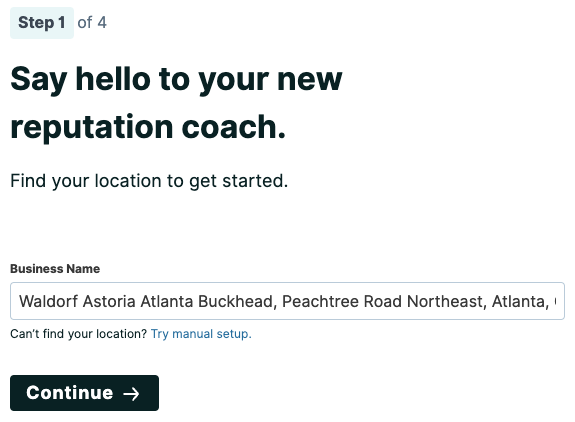
In the business name field enter the business name and select the appropriate business. Once selected click continue.
In the next screen you will confirm the business details. Verify the address, phone number, website and select the appropriate Business Category.
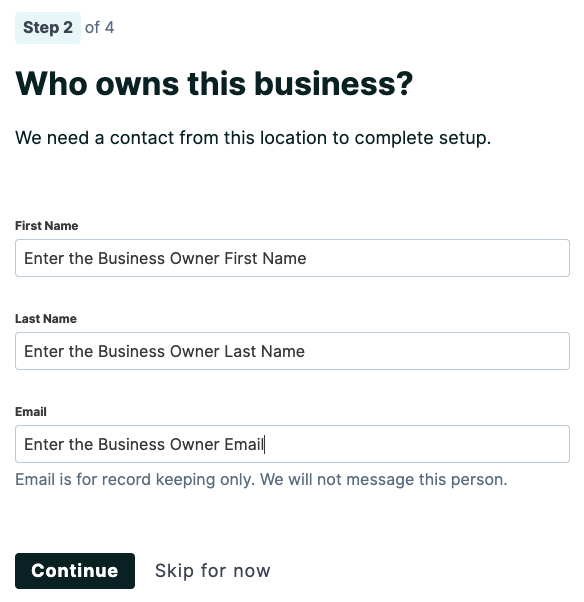
In the next step you will enter the business owner details.
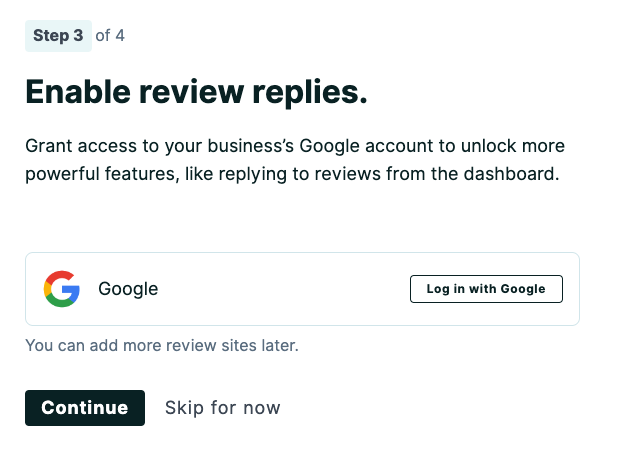
In Step 3 you are prompted to authorize GatherUp to connect to the business’s Google Business Profile. This will enable more frequent pulls of reviews and the ability to respond directly to reviews from GatherUp. We highly recommend doing this step.
After adding you will be asked to ensure the Google link is correct by selecting “Yes, that’s correct!” and select continue to authorize Google, and then click Continue to Requests.
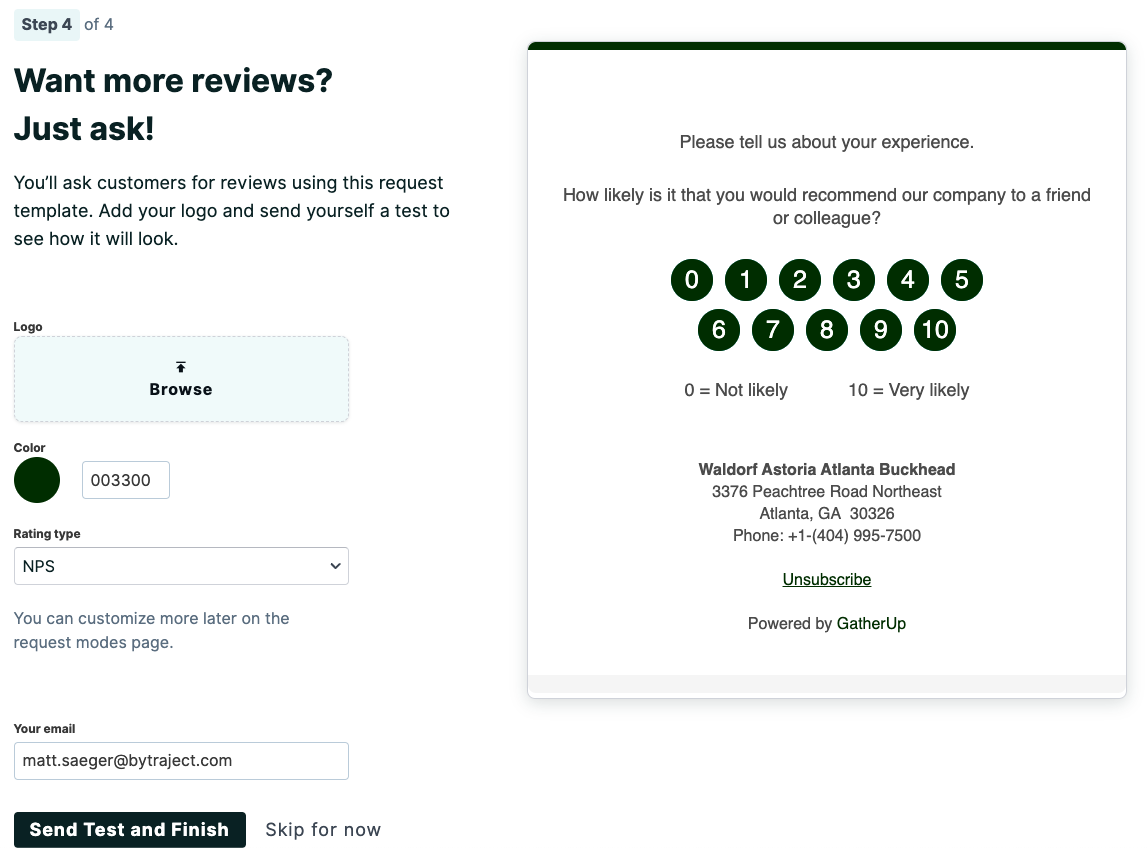
In the final step you will modify the review survey seen by the end customers. Add a logo, select your accent color and toggle between NPS or Stars.
Select Send Test and Finish to complete
Settings → Business Details
This is an important section to confirm and update business details such as address, phone, email, website or owner information. This page will display the current status of your SMS verification which is required to send SMS review requests. Note, this process can take a few days to complete, especially if there are updates to the details required. Please reach out to support@gatherup.com with any questions or issues.
Settings → Online Review Links
While we completed the addition of Google monitoring in the previous steps, the business may want to monitor and request from other 3rd-party online review websites.
To add more links simply click on the drop down to select from the number of review sites listed. We suggest you open a new window or tab in your Internet browser and go to the profile page of your business on that site. You want to copy/paste the URL of that profile/listing into that site you selected in GatherUp.
2. Selecting your review request flow
Request Templates are predefined sequences for sending out review requests to your customers. Each template represents a different strategy, tailored to achieve specific outcomes. Our modes have various options for requesting feedback, capturing Net Promoter Score, gathering 1st-party reviews, segmenting customer experiences (positive or negative) and encouraging 3rd-party online reviews. You will choose one of the following:
Survey & Reviews Flow: Our full offering of customer feedback
Rating
Survey
Public review
Best For:
Collecting actionable insights about your customers’ experiences to improve your business operations
New businesses without many public reviews
Collecting and publishing 1st-party reviews on your website & social media
Building a list of happy customers to opt-in to promotional SMS
Ratings & Reviews Flow: A quick path for NPS/Stars and 3rd-party reviews
Rating
Public review
Best For:
Businesses that want to grow public reviews carefully, but don’t plan to monitor private feedback
Building a list of happy customers to opt-in to promotional SMS
Public Review Flow (1-step): Directly requests 3rd-party reviews
Public review
Best For:
Businesses that want to collect as many 3rd party reviews as possible
Businesses with other methods for collecting private feedback
Businesses that already have plenty of positive public reviews
DIAGRAM A: This diagram is to give you an idea on the touch points
Review requestSent by email or SMS
Customer rates youNPS (0–10) or stars
Positive Feedback PageAsks them to write a 3rd-party online review
Negative Feedback PageAn apology and a way to leave direct feedback. 3rd-party review sites are also shown.
Positive or negative is set by your rating threshold: NPS 7 or 3.5 stars by default.
Edit The Flow Of Your Chosen Request Mode
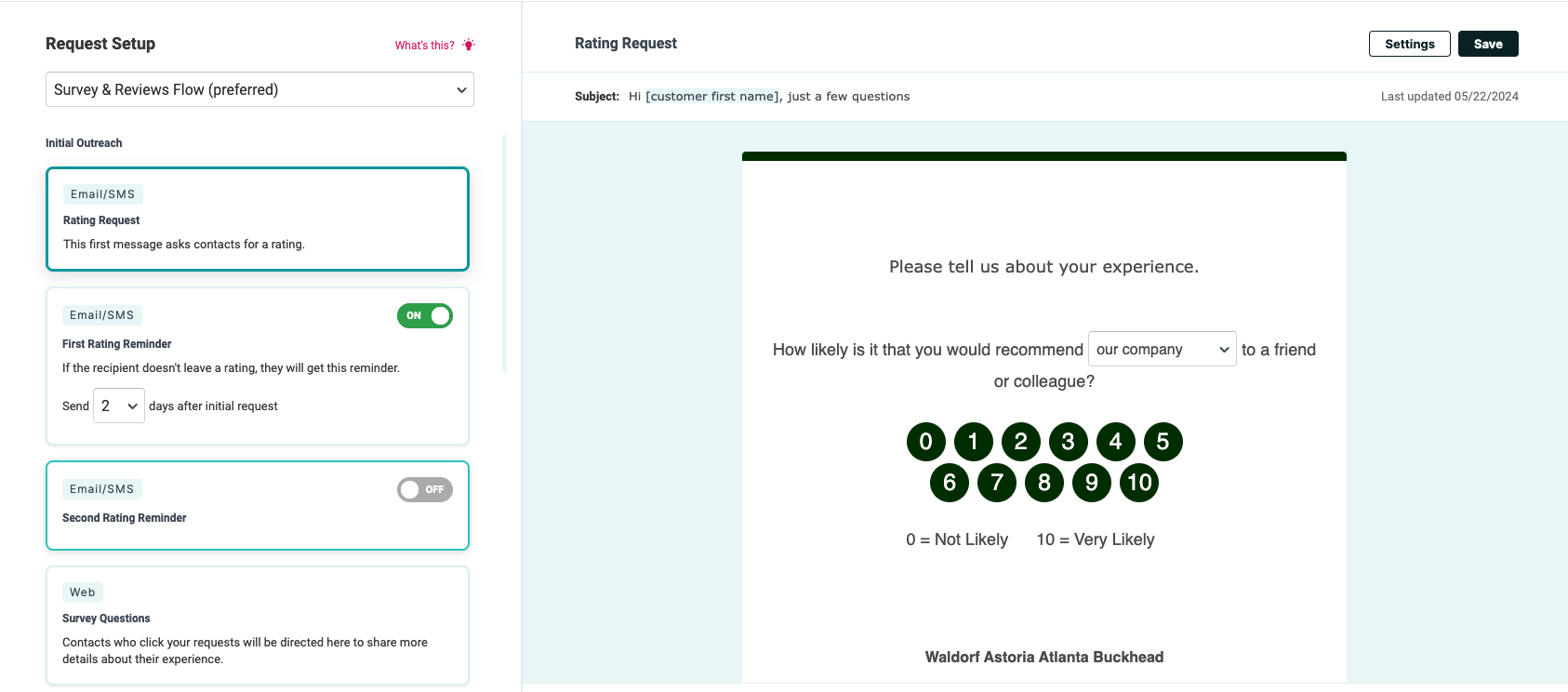
On the Request Modes page, you will select the request flow from the drop down under Request Setup at the top left of the page. Once you have selected your mode you will edit the content, steps and options of that mode on the right side of the screen.
It’s important to note that each mode is separate and has its own settings, content, and steps in the process.
There are many options to customize including:
🙂 Positive Feedback Page – This page displays for users that rate you positively* and asks them to write a 3rd-party online review.
🙁 Negative Feedback Page – This page displays for customers rating you negatively* and offers an apology as well as a call to action to leave more direct feedback to the business. 3rd-party review sites are also shown here to be in compliance with the Federal Trade Commission’s guidelines and best practices.
To edit each step, click the step in the left navigation to get the preview on the right side. You will then be shown the editor for that step so you can customize and save the content. Be sure to scroll down through each step on the left and edit the content as you require. You will also see how the logo and colors you selected earlier are reflected in these follow up steps.
You will notice some steps have ON/OFF options available and timing settings for automatic delays. Again, each step has its own template, content and options so review them closely.
Settings → Feedback Settings
The Feedback settings page is an option under settings that we referenced previously. For businesses looking to try new strategies, or have greater flexibility with their request process, the Feedback Settings section can help with the following items:
Default send methods (email, SMS or both) for the initial request, and survey reminders for SMS messages.
Adjust repeat customer thresholds. These settings give flexibility to businesses that have many repeat customers and want to control the number of requests a customer may receive.
Updates to your Rating Settings. Flexibility to do NPS or Stars and control the threshold at which a review is positive or negative.
Updates to Landing Page. These are customizations you can make to the Landing Page to show certain fields or copy.
In addition, this is the best place to find the specific URL and QR code to prompt for a review request from customers. These links can be copied and applied to your various resources to increase review generation.
For a detailed breakdown of each of these features please visit our help center article Feedback Settings.
3. Add Customers
GatherUp offers many different ways to acquire feedback from your customers. The most common way is to use your customer’s email address or mobile phone number to proactively ask them for feedback and reviews. But before we add our first customer we will want to be sure and decide on what will happen once a new customer is added.
Send Mode
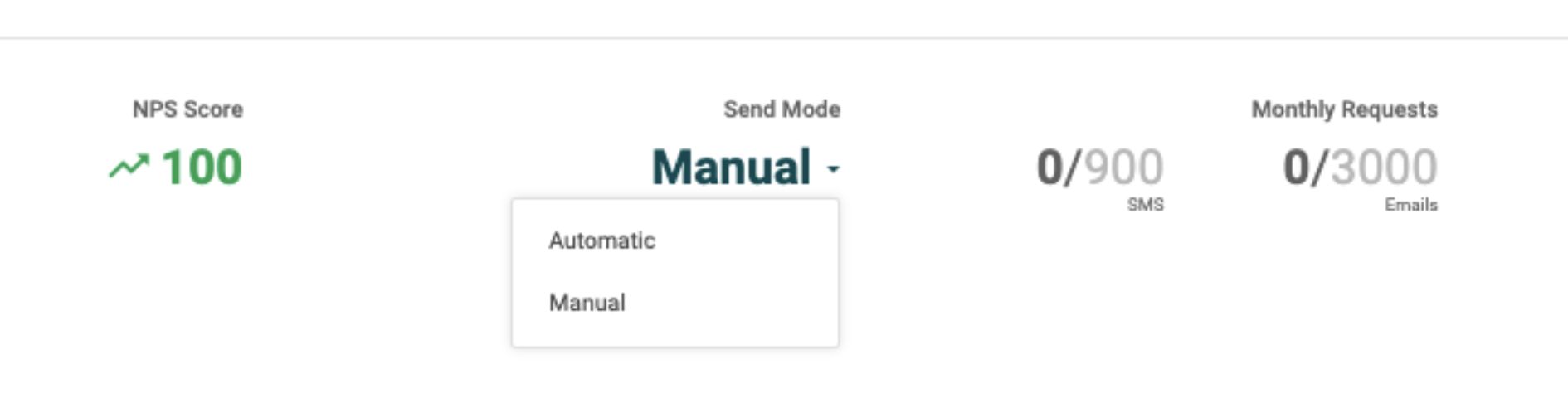
Located on the Customer Activity screen for the specified business, you have the ability to set the Send Mode to Manual or Automatic. If specified as Automatic, new users will automatically be queued to be sent a review request during business hours. If set to manual, a user will need to manually select which profiles to be sent a review request.
Different methods to add customers
We offer a number of methods to help capture customer information to request more reviews. We have both manual and automated options that give you the greatest opportunity and flexibility to find what works best for you.
Automated Methods
To simplify and fully automate the review process utilize the following options to automate the addition of new customers.
Client Staff Forms – a dedicated url to add customers manually without having the requirement of logging in to the platform. Great for any business where an employee is empowered to add a customer’s information on the spot.
We’ve covered the basics to have you up and running with GatherUp. We’re hoping this Quick Start Guide will help you build better relationships with your valuable customers. Following the tips in this guide will help you get more reviews, centralize your online review management and help market your business to new customers.
With all these new reviews, we would suggest taking a look at one of our features to help streamline responding to these reviews. Please take a look at our Suggested Review Response feature. Not only get notified of new reviews but have an AI suggested response you can action on immediately.
Our User Guide & News
Answers, FAQs, “How-to Articles”, Videos and More
When you are ready to learn more, dig deeper or maybe are in need of further education on our platform visit our User Guide. It is full of how-to articles, video tutorials, best practices, tips and recommendations.
We’re here to help and truly care about your experience and satisfaction with our platform. Our Customer Support team is ready to help you succeed with us.
Gather feedback and reviews to drive your business up
GatherUp will make customer experience the backbone of your business, building a continuous cycle of happy customers and powerful reviews to help you capture your next customer.